Get Started
GitHub Action for WP Engine Site Deployments
Tags:
Key Takeaways
Deploy code from GitHub to WP Engine with ease using GitHub Actions. Options include deploying full site directories, themes, plugins, and more. Utilize WP Engine’s SSH Gateway for deployment.
Configure deployment in three steps: Connect GitHub and WP Engine, save SSH keys, and set up yml configuration. Ensure secure deployment by following the setup instructions meticulously.
Customize deployment workflows for different branches/environments with simple yml file adjustments. Enhance flexibility by creating specific workflows for varied deployment needs.
Explore advanced versioning and deployment scenarios for tailored deployment strategies. Tailor deployments based on specific needs like full site deploy, theme repo deploy, or subdirectory deploy.
Optimize deployments by leveraging custom rsync flags, and cache clearing options. Improve deployment efficiency and performance by utilizing advanced deployment options.
Ensure security and efficiency by using ED25519 formatting for SSH keys in continuous integration. Stay up-to-date with secure practices for SSH key generation in deployments.
If you need to deploy code from a GitHub repo to WP Engine, this is a great option using GitHub Actions. Deploy a full site directory, a theme, plugin, or other directory with the SRC_PATH and REMOTE_PATH options. Other options include custom rsync flags, or clearing cache.
This configuration uses WP Engine’s SSH Gateway, instead of WP Engine’s GitPush feature.
View the full guide on GitHub here.
The basic setup steps outlined below are:
- Generate an SSH key pair
- Add your SSH private key in GitHub
- Add your SSH public key in WP Engine
- Add a YAML config file
Generate an SSH Key Pair
Follow the steps in our SSH gateway article to Generate a new SSH key.
Add Your SSH Private Key in GitHub
- Add the Private key from the key pair you generated, to your Repository Secrets or your Organization Secrets in GitHub.
- Save the new secret “Name” as
WPE_SSHG_KEY_PRIVATE.
- Save the new secret “Name” as
Add Your SSH Public Key in WP Engine
Add the Public key from the key pair you generated, to your SSH Keys in the WP Engine User Portal. This Guide will show you how.
Add a YAML Config File
- Create
.github/workflows/main.ymldirectory and file locally. Copy and paste the configuration from below, replacing the value underbranches:and the value forWPE_ENV:.- View YAML file examples below:
- Consult the Environment Variables & Secrets section below to see available options.
To deploy from another branch, simply create another yml file locally for that branch, such as .github/workflows/stage.yml and replace the values for branches: and WPE_ENV: for that workflow.
After you’ve added you YAML file, Git push your site’s GitHub repo. The action will do the rest!
View your actions progress and logs by navigating to the “Actions” tab in GitHub for your repo.
Simple main.yml
name: Deploy to WP Engine
on:
  push:
    branches:
     - main
jobs:
  build:
    runs-on: ubuntu-latest
    steps:
    - uses: actions/checkout@v7
    - name: GitHub Action Deploy to WP Engine
      uses: wpengine/github-action-wpe-site-deploy@v4
      with:
        WPE_SSHG_KEY_PRIVATE: ${{ secrets.WPE_SSHG_KEY_PRIVATE }}
        WPE_ENV: <your_install_name_here>
Extended main.yml
name: Deploy to WP Engine
on:
  push:
    branches:
     - main
jobs:
  build:
    runs-on: ubuntu-latest
    steps:
    - uses: actions/checkout@v7
    - name: GitHub Action Deploy to WP Engine
      uses: wpengine/github-action-wpe-site-deploy@v4
      with:
        # Deploy vars
        WPE_SSHG_KEY_PRIVATE: ${{ secrets.WPE_SSHG_KEY_PRIVATE }}
        WPE_ENV: <your_install_name_here>
        # Deploy Options
        SRC_PATH: "wp-content/themes/genesis-child-theme/"
        REMOTE_PATH: "wp-content/themes/genesis-child-theme/"
        FLAGS: -azvr --inplace --delete --exclude=.*  --exclude=wp-content/mu-plugins/local-plugin --exclude-from=.deployignore
        SCRIPT: "path/yourscript.sh"
CACHE_CLEAR: TRUE| Name | Type | Usage |
|---|---|---|
WPE_SSHG_KEY_PRIVATE | secrets | Private SSH Key for the SSH Gateway and deployment. See below for SSH key usage. |
| Name | Type | Usage |
|---|---|---|
WPE_ENV | string | Insert the name of the WP Engine environment you want to deploy to. This also has an alias of PRD_ENV, STG_ENV, or DEV_ENV for multistep workflows. |
| string | Optional subdirectory or file within a repo to deploy from other than the root directory of the source (GitHub) repo. Ex. "wp-content/themes/genesis-child-theme/". If unspecified, src_path defaults to the root of filesystem. |
| string | Optional subdirectory or file within a repo to deploy to other than the root directory of the remote (WP Engine) repo. Ex. "wp-content/themes/genesis-child-theme/". If unspecified, src_path defaults to the root of filesystem. |
FLAGS | string | Set optional rsync flags such as --delete or --exclude-from. The example is excluding paths specified in a .deployignore file in the root of the repo. This action defaults to a non-destructive deploy using the flags in the example above. |
SCRIPT | string | Remote bash file to execute post-deploy. This can include WP_CLI commands for example. Path is relative to the WP root and file executes on remote. This file can be included in your repo, or be a persistent file that lives on your server. |
CACHE_CLEAR | bool | Optionally clear cache post deploy. This takes a few seconds. Default is TRUE. |
Advanced Versioning and Deployment Scenarios
Scenario 1: Full Site Deploy
Deploy all files from a WordPress® repo (i.e. my-wp-site/.git) to the root directory of WordPress within WP Engine.1
In this scenario, SRC_PATH and REMOTE_PATH are left empty for default deployment.
- name: GitHub Action Deploy to WP Engine
      uses: wpengine/github-action-wpe-site-deploy@v4
      with:
      # Deploy vars
        WPE_SSHG_KEY_PRIVATE: ${{ secrets.WPE_SSHG_KEY_PRIVATE }}
        WPE_ENV: <your_install_name_here>
Scenario 2: Theme Repo Deploy
Deploy all files from a theme repo (i.e. my-wp-site/wp-content/themes/my-theme/.git) to the theme directory of WordPress on WP Engine.
In this scenario, only REMOTE_PATH is required. The SRC_PATH may be left blank since the repository is in the root of the theme directory.
- name: GitHub Action Deploy to WP Engine

      uses: wpengine/github-action-wpe-site-deploy@v4
      with:
      # Deploy vars
        WPE_SSHG_KEY_PRIVATE: ${{ secrets.WPE_SSHG_KEY_PRIVATE }}
        WPE_ENV: <your_install_name_here>
        # Deploy Options
        REMOTE_PATH: "wp-content/themes/genesis-child-theme/"
Scenario 3: Subdirectory Deploy
Deploy only a subdirectory of a repository to a WordPress directory on WP Engine.
For example, deploy the theme directory (i.e my-wp-site/wp-content/themes/my-theme/) of a repo versioning the “wp-content” folder (i.e my-wp-site/wp-content/.git).
In this scenario, both SRC_PATH and REMOTE_PATH are configured.
- name: GitHub Action Deploy to WP Engine
      uses: wpengine/github-action-wpe-site-deploy@v4
      with:
      # Deploy vars
        WPE_SSHG_KEY_PRIVATE: ${{ secrets.WPE_SSHG_KEY_PRIVATE }}
        WPE_ENV: <your_install_name_here>
        # Deploy Options
        SRC_PATH: "themes/my-theme/"
        REMOTE_PATH: "wp-content/themes/my-theme/"
Scenario 4: WordPress Local Atlas Deploy
Deploy a WordPress application directory ( i.e app/public/wp-content/) from an Atlas project in Local that is also versioning a Javascript application (ie. /Local Sites/atlasdemo/.git).
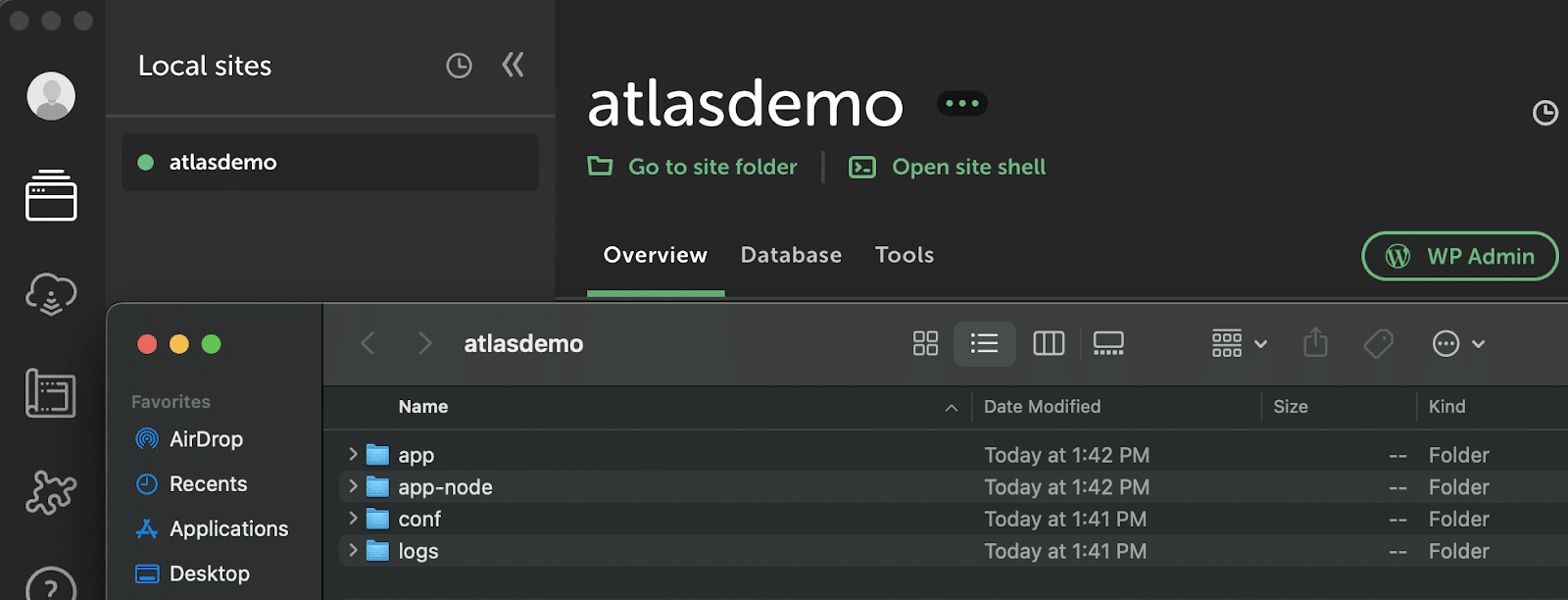
In this scenario, both SRC_PATH and REMOTE_PATH are configured.
- name: GitHub Action Deploy to WP Engine
      uses: wpengine/github-action-wpe-site-deploy@v4
      with:
      # Deploy vars
        WPE_SSHG_KEY_PRIVATE: ${{ secrets.WPE_SSHG_KEY_PRIVATE }}
        WPE_ENV: <your_install_name_here>
        # Deploy Options
        SRC_PATH: "app/public/wp-content/"
REMOTE_PATH: "wp-content/"- Defining environment variables in GitHub Actions
- Storing secrets in GitHub repositories
- As this script does not restrict files or directories that can be deployed, it is recommended to leverage one of WP Engine’s .gitignore templates.
NEXT STEP: Check out our best practices for deploying when using version control