
SSN and Comb Fields
Some government forms have an SSN (social security number) “comb” field that is split into three sections:

To fill out this SSN field, you can use DocSpring’s “Comb” and “Comb Offset” feature.
First, create a new field for each SSN section. Give all of these fields the same name (e.g. ssn.)
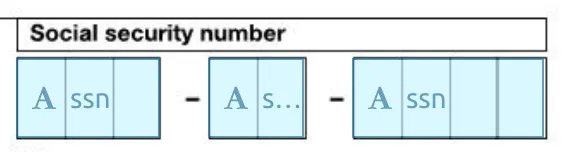
Now scroll to the bottom of the options sidebar, and check the “Comb” checkbox for each of these ssn fields.

Set the following options for the three fields:
- Cells: 3, Offset: 0
- Cells: 2, Offset: 3
- Cells: 4, Offset: 5
The comb fields that share a name make one row of boxes, and a field’s offset is the number of boxes in the row before it. The first field has offset 0, the second comes after the first’s 3 boxes, and the third after 5.
Now you can send a 9 character SSN as a single value in your data (e.g. { "data": { "ssn": "123456789" } }), and this value will be split into 123 - 45 - 6789. The SSN will be formatted correctly across the three SSN sections on the form.
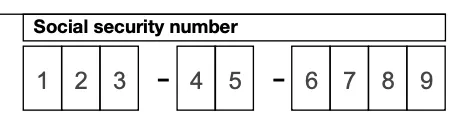
Each character is centered in its box, so comb fields have no horizontal alignment.
Options for the whole value
Section titled “Options for the whole value”Three more comb options belong to the field’s name, so they apply to every comb field with that name. You can change them on any of those fields. They are for text and numbers: a Date field prints in its date format and doesn’t have them.
- Print digits only: only the value’s digits print, one in each box. Dashes, spaces, brackets and any other punctuation are left out, so
123-45-6789and123456789both fill the 9 boxes of an SSN, and(555) 123-4567fills the 10 boxes of a phone number. The value can have as many digits as the boxes hold, and letters aren’t accepted. Use it for String fields that hold only digits: SSNs, EINs, phone numbers, ZIP codes, routing and account numbers. (A Number field would drop the leading zero of a ZIP code like02134.) - Fill from the right: the value fills the last boxes of its row, and the boxes before it stay empty, as amounts are written on paper forms. On an amount printed as
$ [_][_][_] , [_][_][_] .00across two fields,850fills the right-hand field. - Pad with zeros: with Fill from the right, the boxes before the value print zeros. An 8-digit A-Number on 9 boxes prints as
012345678.
With the API, these are a field’s print_digits_only, comb_fill_from_right and comb_pad_with_zeros options.
Numbers
Section titled “Numbers”A Number field on comb fields is split across them from its printed form, with its decimal places.
Dollars and cents
Section titled “Dollars and cents”When a form has separate boxes for the dollars and the cents of an amount, such as $ [_][_][_][_][_][_] . [_][_], make them two fields with the same name, and choose what each one prints with the field’s Format option:
- Whole part (Dollars only for a currency field) for the dollars, with Fill from the right
- Decimals (Cents only) for the cents, with 2 decimal places
1250.5 prints [_][_][1][2][5][0] . [5][0]. Neither field needs an offset: each part of the number is a row of boxes of its own. The number is rounded once, to the decimal places of the field that prints them, so 12.999 prints 13 and 00. A minus sign prints with the dollars.
When the dollars are themselves in groups of boxes, such as $ [_][_][_] , [_][_][_] . [_][_], give each group the dollars option and an offset, as for any row: 0 for the first group and 3 for the second. With Fill from the right, 1250.5 prints [_][_][1] , [2][5][0] . [5][0].
The Format option works the same way for fields that aren’t comb fields, such as a “Dollars” column beside a “Cents” column. With the API, it’s a field’s number_part: all, whole or decimals.
One row of boxes
Section titled “One row of boxes”A single comb field can hold a whole amount. With Fill from the right and decimal places, the number lines up on its decimal point. The point takes no box: the decimal places fill the last boxes, and the whole number fills the boxes before them from the right. A minus sign takes the box before the first digit, or the first box with Pad with zeros.
A number that doesn’t fit
Section titled “A number that doesn’t fit”A number is never cut off. When it has a digit that no box prints, because it has more digits than its boxes or because the fields’ offsets leave a gap where a digit falls, API v2 returns an error that names the field when you create the submission, an API v1 submission fails with that error, and a form shows the error on the field.
When a form has separate boxes for the month, day and year, make each set of boxes a comb field with the date’s name, at offset 0, with its own date format: %m, %d and %Y. One set of boxes for the whole date can use a single format, such as %m%d%Y.
Filling comb fields in a form
Section titled “Filling comb fields in a form”On visual forms and the signature request signing page, each box is its own input:
- Typing fills a box and moves to the next one, across the fields that share the name. Every copy of the value, such as an SSN repeated on each page, updates as you type.
- Backspace and Delete remove a character, and the characters after it move back. A space is a character, so you can type a space between the words of a name.
- Pasted text fills the boxes from the cursor. When it doesn’t fit, the separators that fall between two fields are dropped, so
123-45-6789pastes into a 3/2/4 SSN and(555) 123-4567into a 3/3/4 phone number. In a single field, a number written in groups loses all its separators (123-45-6789fills 9 boxes), and any other text is cut off at the last box. - Typing does the same once the boxes are full. When there’s no separator to drop, more typing does nothing.
- With Fill from the right, digits fill from the right as on a calculator. Typing
.moves to a number’s decimal places. - Print digits only fields and dates open the number keyboard on phones.
- A default or a value from the submission’s data that’s longer than the boxes shows an error, and your first change in the boxes drops the characters past the last box.
- A date whose formats use only
%d,%m,%yand%Yis typed across its boxes, and saved once it’s complete. A date with only a month and a year saves the 1st of the month, and a date that doesn’t exist, like 02/30/2026, shows an error. Dates with other formats keep the date picker, and so does a date whose boxes leave out some digits of its month, day or year (%m/%d/%Yin 8 boxes).
Offsets that don’t add up
Section titled “Offsets that don’t add up”The comb fields that share a name should make up one or more complete copies of the value. Each copy is a row of boxes that starts at offset 0, and its fields continue with no gaps or overlaps. (The fields that print a number’s dollars are a row of their own, and so are the ones that print its cents.) A 9-box SSN is one copy, a 3/2/4 split is another, and the same split on two pages is two copies.
The template editor shows a warning that names the field and the characters when:
- no comb field prints a character (offsets 0, 3 and 6 for a 3/2/4 split leave out character 6)
- more than one comb field prints a character
- a date’s comb fields have more boxes than its format has characters
- the copies of a number, or of a value that fills from the right, have different lengths. Each copy lines the value up to its own length, so a value that fills the longest copy is cut off in a shorter one, and a number that long fails the submission
Forms fill the characters that no field shows with spaces, so you can still type into each field. A Number field with a digit in such a gap fails the submission, as a number that’s too long does. If your template does this on purpose, such as offsets 0, 4 and 7 that skip the dashes in a value sent as 123-45-6789, close the warning. It’s closed for everyone who edits the template, and comes back when those fields’ offsets, cells or options change.